
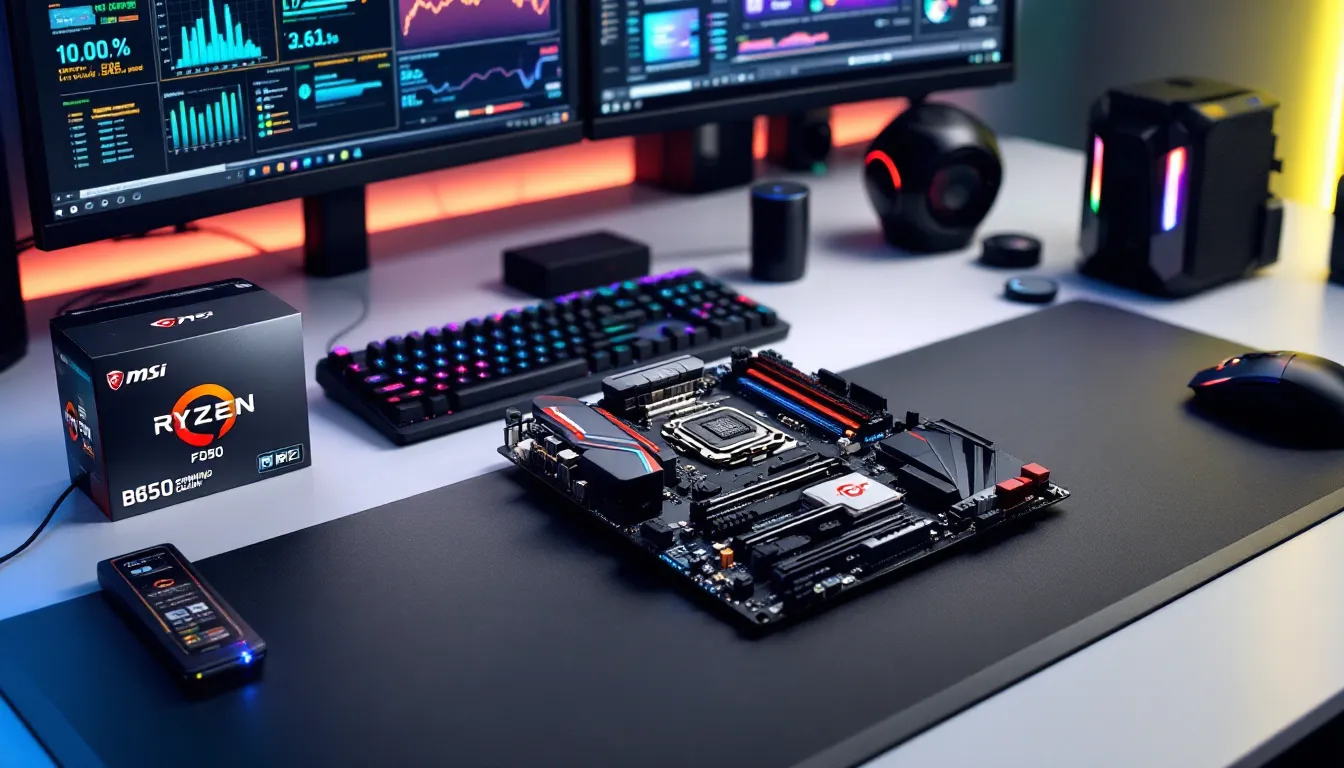
Building a gaming PC or upgrading your current setup? The motherboard is your PC’s nervous system, it connects everything and determines how well your components play together. The MSI B650 Gaming Plus WiFi has become a solid choice for gamers looking to pair an AMD Ryzen 7000-series CPU with strong performance features, built-in WiFi, and reasonable overclocking headroom. Whether you’re a first-time builder or a seasoned enthusiast, this guide walks you through unboxing, setup, BIOS configuration, networking, and optimization. You’ll find exactly what you need to get your rig running smoothly, tweak performance safely, and troubleshoot if something goes sideways. Let’s dig in.
Table of Contents
ToggleKey Takeaways
- The MSI B650 Gaming Plus WiFi is a mid-range AM5 motherboard offering excellent value for Ryzen 7000-series builds, featuring WiFi 6E, PCIe 5.0 slots, and strong overclocking support without flagship prices.
- Enable DOCP or XMP settings in BIOS immediately after installation to unlock faster DDR5 RAM speeds (6000–7200 MHz) for optimal gaming performance.
- Proper CPU cooling, moderate voltage settings (under 1.3V), and stability testing via Prime95 or Cinebench are essential before attempting any overclocking on this motherboard.
- Install official MSI drivers for chipset, WiFi, Ethernet, and GPU immediately after Windows setup to ensure stability, gaming optimizations, and full hardware compatibility.
- Use the onboard 2.5G Ethernet port for competitive gaming and low-latency applications rather than WiFi, though the integrated WiFi 6E module is adequate for casual play.
- Regular maintenance—dust removal every 6–12 months, thermal paste replacement every 2–3 years, and firmware updates quarterly—keeps your B650 Gaming Plus WiFi system running smoothly for years.
What Is The MSI B650 Gaming Plus WiFi?
The MSI B650 Gaming Plus WiFi is a mid-range AM5 socket motherboard designed for AMD’s Ryzen 7000-series processors (Zen 4 architecture). It strikes a balance between features and price, you get decent overclocking support, WiFi 6E connectivity, and PCIe 5.0 slots without paying flagship prices.
This board targets gamers and content creators who want a reliable, feature-packed platform without excessive premium overhead. It supports up to 192GB of DDR5 RAM, includes multiple M.2 slots for NVMe storage, and has solid power delivery for both stock and moderately overclocked chips. The onboard WiFi 6E module eliminates the need for a separate network card, which is a practical bonus for those building in cramped cases or desks without easy Ethernet access.
Key positioning: this is the “sweet spot” motherboard. Not a budget option, but not a $300+ gaming-focused ultra-premium board either. If you’re running a Ryzen 5 7600X or Ryzen 7 7700X for gaming, or a 7900X for streaming and gaming, this board will handle it without complaint.
Key Specifications & Features
Socket & Processor Compatibility
The B650 Gaming Plus WiFi uses the AM5 socket, which supports all Ryzen 7000-series and newer AM5 processors (including upcoming Ryzen 8000-series if you plan to upgrade later). The socket is designed for LGA-style retention, not pins on the processor, so handling is straightforward.
Compatible CPU list includes the Ryzen 5 7600X, 7700X, 7800X3D, Ryzen 7 7700 (non-X), and higher-end 7900X and 7950X variants. Note: older Ryzen 5000-series chips (Zen 3, 3000-series) are not compatible with this board, you need a B650 or X670 chipset for Zen 4 and beyond.
The VRM (voltage regulator module) delivers stable power even under moderate overclocking, though enthusiasts pushing extreme settings may prefer an X870 or high-end X870E board.
RAM & Memory Support
This board supports DDR5 memory exclusively (no DDR4 backward compatibility). Standard support runs up to 6400 MHz JEDEC spec out of the box, but the board will recognize faster XMP/DOCP profiles from high-performance RAM kits, many gamers run 6000–7200 MHz stably with decent cooling and BIOS tweaks.
Maximum capacity is 192GB (two DIMM slots, up to 96GB per stick with future modules). Dual-channel configuration is standard, so you’ll want two matched sticks for optimal performance. Timing tuning in BIOS can shave a few percent off latency, which matters more in esports titles like Counter-Strike 2 or Valorant than in single-player games.
Latency-sensitive gamers often aim for CAS latency (CL) 30–32 at 6000 MHz or faster as a reasonable sweet spot.
Expansion Slots & Connectivity
The B650 board includes:
- 1x PCIe 5.0 x16 slot (for GPU)
- 1x PCIe 4.0 x16 slot (electrically x4, suitable for second GPUs or capture cards)
- 3x M.2 NVMe slots: one PCIe 5.0 (fastest), two PCIe 4.0
- 4x SATA ports for legacy drives
- USB 3.2 Gen 2 headers for high-speed external storage
- Rear I/O: USB 3.2 Gen 1, Gen 2 Type-A and Type-C ports, plus audio jacks
Storage-wise, you can easily fit an NVMe SSD boot drive on the PCIe 5.0 slot (though a Gen 4 drive is plenty fast for gaming, the Gen 5 advantage is marginal unless you’re doing heavy file transfers). Keep in mind that using the second M.2 slot may disable one or two SATA ports depending on BIOS configuration, check the manual if you’re running many drives.
WiFi & Networking Capabilities
The WiFi 6E module provides 2×2 MU-MIMO support with speeds up to 2.4 Gbps theoretical bandwidth across the 2.4 GHz, 5 GHz, and new 6 GHz bands. Real-world throughput in gaming scenarios typically maxes out around 1.2–1.5 Gbps, which is more than sufficient for online gaming, streaming, and streaming simultaneously.
The onboard Ethernet port is a Realtek 2.5G chip, solid for wired connections, and wired is always preferable for competitive gaming if your setup allows it. WiFi introduces slight latency variance compared to Ethernet, though modern WiFi 6 is stable enough for most gamers.
Bluetooth 5.3 is also integrated, so connecting wireless controllers or headsets is painless.
Getting Started: Initial Setup & Installation
Unboxing & What’s Included
When your MSI B650 Gaming Plus WiFi arrives, expect:
- The motherboard itself (in an anti-static bag)
- I/O shield (pre-installed or loose)
- Two SATA cables
- M.2 heatsinks and thermal pads
- Motherboard manual (physical or PDF link on the box)
- Driver disk (often redundant, download from MSI’s website instead)
- WiFi antenna(s) for the integrated module
Keep the box and anti-static bag if you might RMA the board or transport your system frequently. Before touching anything, ground yourself, touch a metal part of your case or wear an anti-static wrist strap. The B650 is tough, but why risk it?
Installing Your Motherboard Into The Case
- Prepare the case: Remove side panels and any existing motherboard or standoffs that don’t align with AM5 mounting holes. Ensure your case has standoffs for an ATX motherboard (nine screw points in a standard layout).
- Align and place: Gently lower the motherboard into the case, lining up the I/O shield with the rear cutout and the screw holes with the standoffs.
- Screw it down: Use the motherboard screws (usually M3 size) and snug them hand-tight, do not overtighten. A snug fit is all you need: over-torquing can warp the PCB.
- Install the I/O shield: If not pre-installed, clip the metal shield into the rear I/O cutout firmly.
Double-check that the board sits flat and the CPU socket is not obstructed, you’ll need clear access for the CPU.
Connecting Power & Front Panel Headers
Power connections:
- 24-pin ATX power: The main power connector to the right of the motherboard. Make sure it seats fully, you’ll hear a small click.
- 8-pin CPU power: Near the CPU socket (top-left area). This supplies the processor with clean power. Don’t forget this, the system won’t boot without it.
- SATA power and 6-pin PCIe connectors (optional, for high-end GPUs): Only needed if your GPU requires them.
Front panel headers (small connectors for case buttons and lights):
- Power button → labeled PWR_SW or PWR+ and PWR−
- Reset button → RST_SW
- Power LED → PWR_LED (usually white and green wires)
- HDD activity LED → HDD_LED
These are small and fiddly. The motherboard manual includes a diagram, consult it. Polarity matters for LEDs (positive and negative), but the power/reset buttons are polarity-agnostic.
Installing The CPU & RAM
CPU installation:
- Lift the AM5 socket retention lever (it swings up on a hinge).
- Remove the socket cover if present.
- Align your Ryzen chip’s notch with the socket’s key (no forced fitting, it should slide smoothly). The gold IHS (heat spreader) faces up.
- Lower the retention lever back down. It should clamp the CPU firmly without excessive force.
- Install the CPU cooler per the cooler’s instructions. The LGA-style mounting usually involves a backplate and an AM5 bracket.
RAM installation:
- Open the clips on both ends of the DIMM slots (they swing outward).
- Align the notch on your DDR5 RAM stick with the key in the slot.
- Press down firmly until both clips snap into place. The RAM should sit flush with no gold pins visible.
- No special angle needed, straight down insertion is correct.
Install RAM in slots DIMM_A2 and DIMM_B2 first (check your manual for exact labeling) for proper dual-channel operation. If you’re using only one stick temporarily, the motherboard may auto-detect it, but dual-channel performance is what you want.
BIOS Navigation & Basic Configuration
Accessing The BIOS Setup Utility
With your system assembled and power supply connected, power on the PC. As soon as you press the power button, watch the screen. You’ll see the MSI boot splash screen briefly. Press Delete (or sometimes F2) repeatedly to enter BIOS setup. Timing is tight, if you miss it, the system boots into Windows, and you’ll have to reboot and try again.
Once in BIOS, you’ll see a menu-driven interface. Newer MSI boards use a graphical BIOS with mouse support: older versions are keyboard-only. Navigate using arrow keys and Enter, or click with the mouse if available. Your motherboard manual will show the exact BIOS version and layout.
Essential BIOS Settings For Gaming
Right after a fresh build, tweak these settings:
1. Boot Order
- Set your NVMe drive as the first boot device. This ensures Windows (or Linux) loads from your fast SSD, not a USB drive or secondary storage.
2. XMP/DOCP Profile
- If your RAM is rated for faster speeds (6000 MHz, 6800 MHz, etc.), find the “DOCP” or “XMP” option under Overclocking or Advanced settings.
- Enable it and select the appropriate profile (usually labeled by speed, e.g., “Profile 1: DDR5-6000”).
- This automatically applies manufacturer-tested timings and voltages. Much safer than manual tuning if you’re new to this.
3. CSM Mode (Compatibility Support Module)
- If you’re installing a modern OS (Windows 11, Linux), leave CSM off. CSM is for legacy BIOS and older OS support: it’ll slow boot times.
- Ensure UEFI boot is enabled.
4. Secure Boot
- For Windows 11, this should be on. For gaming, it’s fine to leave on. Some older software or games might conflict with it: if so, disable it in BIOS, but expect security trade-offs.
5. Virtualization (SVM or AMD-V)
- Leave enabled if you use virtual machines or containers. Gaming doesn’t care either way, but it’s useful to have for future flexibility.
6. Fan Control
- Set fans to a sensible profile: quiet at idle, ramping up as temps rise. The default is usually fine, but you can tweak thresholds if your system runs loud. Avoid running fans at full blast constantly, unnecessary noise and wear.
7. CPU Clock & Voltage (Stock Settings)
- For now, leave CPU voltage at Auto and multiplier at stock. Overclocking comes later if desired.
Save and exit (F10 or the Save & Exit menu). The system boots into Windows.
Updating BIOS & Firmware
BIOS updates fix bugs, improve stability, and sometimes unlock new features or improve compatibility with newer CPUs. Check MSI’s support page for your motherboard model and download the latest BIOS file.
How to flash:
- Download the BIOS file (usually a .ROM file) to a USB stick (FAT32 format, root directory).
- Reboot into BIOS (press Delete on startup).
- Find the M-Flash or BIOS Update utility (usually under Tools or Utilities menu).
- Select the USB drive and the BIOS file.
- Confirm and wait, do NOT power off during the flash. This takes 1–3 minutes.
- The board restarts automatically. On first boot post-update, BIOS resets to defaults, so re-apply your DOCP settings.
Flashing monthly isn’t necessary. Update if MSI releases a fix for a known issue affecting your use case (e.g., stability with your CPU or RAM) or every 6–12 months as a maintenance task. Stable BIOS versions don’t need updating unless there’s a compelling reason.
Overclocking & Performance Tuning
Understanding CPU Overclocking Basics
Overclocking means running your CPU above its stock frequency to extract extra performance. The B650 supports moderate CPU overclocking (all-core frequency increases of 100–300 MHz for most Ryzen chips, though some chips bin better than others).
Key principle: Higher frequency = higher clock speed = more FPS (usually), but also more heat and power draw. There’s a stability wall, push too far and the system crashes, corrupts files, or crashes Windows without warning.
Before touching overclocking settings, ensure:
- Your CPU cooler is adequate (at least a decent tower air cooler or a 240mm AIO for moderate OC)
- Ambient room temperature is reasonable (not already 28°C+)
- Your power supply has enough headroom (not a budget 550W PSU for a 7700X)
Frequency and multiplier: The Ryzen 7000-series runs at a base multiplier. Increasing the multiplier by 1 step = ~100 MHz increase. On the B650, this is called the CPU Core Ratio in BIOS.
Voltage: Increasing frequency requires a slight voltage bump. Stock voltage for Ryzen 7000 is around 1.0–1.1V. Pushing it to 1.25V is safe: beyond 1.3V, you’re gambling with chip longevity.
Memory Speed & Latency Optimization
DDR5 performance tuning is a rabbit hole, but here’s the gist for gamers:
DOCP/XMP first: Enable the XMP profile matching your RAM’s rated speed. This is the simplest and safest tuning. You’ll see immediate benefit if your RAM was rated at 6400 MHz or higher.
Timing tweaks (for enthusiasts):
- CAS Latency (CL): Lower = faster. Default for DDR5-6000 is often CL30: some can handle CL28 or CL26 with a slight voltage bump to 1.45V.
- tRCD, tRP, tRAS: Secondary timings that also affect latency. Tightening these requires stability testing, more on that below.
Reality check: Dropping latency from 30 to 28 might gain 1–2% FPS in latency-sensitive esports games. If you’re chasing framerates in Valorant, every bit helps. If you’re playing Elden Ring, you won’t notice it. Don’t spend hours tuning memory for diminishing returns.
Voltage Settings & Stability Testing
Never guess at voltage. Always test stability after any frequency or timing change.
Manual CPU overclocking steps:
- Boot into BIOS. Set CPU Core Ratio to stock + 1 (e.g., 38x → 39x if stock is 38 on all cores).
- Set CPU Core Voltage to 1.15V (slightly higher than stock).
- Save and boot Windows.
- Open a stress test: Prime95 (30-minute small FFTs test) or Cinebench R24 (renders a test scene).
- Monitor temps with HWiNFO or GPU-Z on a second monitor. Aim to stay below 80–85°C (your cooler’s max depends on design).
- If the test crashes or shows errors, increase voltage by +0.025V and retry. If it passes, try bumping the ratio again.
- Repeat until unstable, then dial back one step and call that your max.
Stable overclocks vary by chip (silicon lottery). A 7700X might do +200 MHz stable at 1.2V: another batch might need 1.25V for the same frequency. Be patient and methodical, rushing leads to corrupted Windows or a bricked chip.
Important: Overclocking voids most warranties. Only proceed if you’re comfortable with potential failure and enjoy the tuning process. Stock performance is plenty for 1440p gaming at 144 Hz or 4K at 60 Hz on most modern games.
WiFi Setup & Networking Configuration
Connecting To WiFi Networks
After Windows is installed and drivers are loaded (more on that below), connecting to WiFi is straightforward:
- Locate the WiFi icon in the Windows taskbar (usually bottom-right).
- Click the icon and a list of nearby networks appears.
- Select your WiFi network from the list.
- Enter the password (your router’s WiFi key).
- Click “Connect” and wait for handshake, usually 5–15 seconds.
For optimal performance:
- Position the antenna: The MSI B650 board ships with a WiFi antenna (looks like a small rubber duck). Screw it onto the antenna connector on the rear I/O panel. Orient it vertically or at an angle away from metal case parts, metal shielding reduces signal strength.
- Choose the right band: Most modern routers broadcast on 2.4 GHz (longer range, slower) and 5 GHz (shorter range, faster). For gaming, 5 GHz is preferable if your router and distance allow stable signal (usually >-60 dBm signal strength in Windows network settings). The 6 GHz band on WiFi 6E is cutting-edge: if your router and ISP support it, great, but it’s not yet essential for gaming.
- Distance and interference: Keep the PC within 5–10 meters of the router. Walls, microwaves, and cordless phones can interfere. If connection is spotty, move closer or switch to 2.4 GHz for stability.
Ethernet alternative (recommended for competitive gaming): If your desk or room allows running an Ethernet cable to your PC, use the onboard 2.5G Realtek port. Wired is always lower latency and more stable than WiFi.
Installing Network Drivers
Windows 11 often auto-detects and installs drivers for the WiFi module and Ethernet on first boot, but for stability and latest features, install official drivers from MSI:
- Visit MSI’s support website: Go to MSI’s drivers page for your motherboard model (B650 Gaming Plus WiFi).
- Download the WiFi driver: Look for “Intel WiFi driver” or “Realtek WLAN driver” (depends on the exact module in your board batch, check Device Manager to confirm).
- Download the LAN (Ethernet) driver: Usually labeled “Realtek LAN” or “Intel LAN”.
- Run the installers and follow prompts. Reboot if prompted.
- Verify in Device Manager: Open Device Manager (right-click Start → Device Manager). Expand “Network adapters” and confirm your WiFi and Ethernet devices show no yellow warning triangles.
A quick check on Windows Update (Settings → Update & Security → Check for updates) will also grab any missing driver updates automatically.
Troubleshooting Connection Issues
WiFi won’t connect or keeps dropping:
- Restart the router: Unplug it for 30 seconds, plug back in, and let it fully boot (lights stabilize).
- Forget and reconnect: In Windows WiFi settings, select your network and click “Forget”. Re-add it and re-enter the password.
- Check WiFi channel congestion: Routers auto-select channels, but if multiple networks overlap on the same channel, interference occurs. Log into your router’s admin panel (usually 192.168.1.1 or 192.168.0.1) and manually switch to a less-congested channel (1, 6, or 11 on 2.4 GHz: higher channels on 5 GHz).
- Update firmware: Some motherboards receive WiFi stability fixes in BIOS updates. If you haven’t updated recently, do so.
- Check antenna connection: Ensure the antenna is hand-tight on the connector and not obstructed by case parts.
Slow speeds:
- Move closer to the router: Distance degrades signal strength and data rate.
- Switch to 5 GHz band (if stable): It’s faster but shorter range. Try it and monitor for dropouts.
- Reposition the antenna: Vertical or diagonal often works better than horizontal.
- Check router load: If someone else is streaming 4K video on the same WiFi, your bandwidth is shared. Either move to a wired connection or ask them to wait (or upgrade to WiFi 6E capable router for better multi-device performance).
High latency (ping) in games:
- Switch to Ethernet: WiFi introduces ~5–15ms extra latency compared to wired. For esports games where RTT (round-trip time) to servers matters, use Ethernet if possible.
- Check for WiFi interference: Microwaves, baby monitors, and older cordless phones use the 2.4 GHz band. Move away or switch to 5 GHz.
- Reduce network congestion: Close bandwidth-heavy apps (streaming, downloads, torrents) on other devices.
Troubleshooting Common Issues & FAQs
No Power Or System Won’t Boot
Symptom: You press the power button and nothing happens. No lights, no fans, no beeps.
Diagnosis:
- Check PSU power: Ensure the power supply switch is flipped to ON (usually a toggle on the back). The PSU should have a small light indicating power.
- Check 24-pin ATX and 8-pin CPU power: Reseat both connectors, sometimes they’re not fully inserted. Push until you hear a click.
- Test the power button: The front panel power button switch may be stuck or misconnected. Short the motherboard’s PWR_SW pins with a screwdriver (tiny two-pin header near the bottom-right of the board) to bypass the case button. If the system boots, the front button is faulty (reattach it or replace it).
- Check RAM seating: Unseated or partially seated RAM prevents boot. Power off, reseat both RAM sticks firmly (you’ll hear a click from the retention clips), and retry.
- Try a CMOS reset: If the motherboard is stuck in a bad BIOS state, a CMOS reset clears it. Locate the CMOS battery (a coin-sized cell on the motherboard). Remove it for 30 seconds, reinsert, and retry power. This resets BIOS to defaults.
Still no boot: If the above don’t work, the motherboard or power supply may be dead. Test the PSU with a different system if possible. If the PSU works elsewhere but your system still doesn’t, the motherboard likely has a hardware defect, RMA time.
Overheating & Thermal Management
Symptom: System runs hot, fans spin loud, or throttles (loses performance) under load.
Causes and fixes:
- Poor CPU cooler contact: Thermal paste between the cooler and IHS (CPU top) may be insufficient or dried out. Power off, remove the cooler per its instructions, wipe the old paste off with isopropyl alcohol, apply a small pea-sized amount of fresh thermal paste, and reinstall. Proper contact = 10°C+ improvement.
- Dust buildup: Dust in heatsinks and fans reduces cooling efficiency. Power off and use compressed air to blow dust out of the cooler fins and case fans. Do this every 6–12 months.
- Case airflow: Ensure case vents aren’t blocked. Front intake fans should pull cool air in: rear/top exhaust fans should push hot air out. Positive air pressure (more intake than exhaust) keeps dust out.
- Thermal limits: Ryzen 7000-series CPUs thermal limit at ~90°C. If you hit that under gaming, the CPU downclocks to stay safe (thermal throttling). This isn’t damage, but it kills performance. Check if your cooler is adequate (budget $30–50 for a decent tower cooler, or $80–120 for a good AIO).
- Ambient temperature: If your room is 28°C+, you’ll run hotter. AC or a fan helps.
Monitoring temps: Download HWiNFO (free). It shows per-core CPU temps, socket power, and fan speeds in real-time. Idle should be within 5–10°C of room temp: gaming load under 75–80°C is excellent, 80–85°C is normal, 85°C+ warrants cooler upgrade.
RGB Lighting & Driver Software
The B650 Gaming Plus WiFi includes RGB header(s) for compatible RGB RAM, AIO coolers, or case fans. Controlling RGB requires MSI’s Dragon Center or MPG Lighting Control software.
Setup:
- Download Dragon Center from MSI support (same place you got drivers).
- Install and launch it.
- Locate the RGB or Lighting section.
- Connect your RGB devices to the motherboard’s RGB headers (labeled RGB_HDR or similar on the board itself).
- In Dragon Center, select profiles (rainbow, breathing, static colors) and sync across devices.
Common issues:
- Software not detecting RGB: Ensure RGB devices are properly connected to the header and powered (some RGB strips need separate power). Restart Dragon Center.
- LED colors off: Adjust color saturation or brightness in Dragon Center. Some cheap RGB strips have limited color accuracy: it’s not a software issue.
- Dragon Center is bloated: It’s a heavy utility. If you don’t care about RGB effects, you don’t need to run it constantly. Use it once to set a profile, then close it. RGB will persist even if the software isn’t running.
- Wish to disable RGB: If you prefer a dark gaming setup, set all effects to static black in Dragon Center, or unplug RGB connectors entirely.
Alternative: Some RGB fans and AIO coolers come with their own proprietary software (e.g., Corsair iCUE, NZXT CAM). Those override the motherboard RGB headers, just use their software instead.
Getting The Most From Your B650 Gaming Plus WiFi
Recommended Driver & Software Installation
A freshly installed Windows is missing critical drivers and utilities. After base Windows setup, grab these in order:
- Chipset drivers: Visit MSI support, download the AM5 chipset drivers (includes SATA, USB, and PCIe drivers). Install first.
- BIOS (optional): Update to the latest version via M-Flash (covered earlier) if you want the newest stability fixes.
- LAN/WiFi drivers: Download from MSI support and install Realtek LAN and WiFi drivers for your specific board revision.
- GPU drivers: Visit AMD or NVIDIA (depending on your graphics card) and download the latest drivers. On TechSpot, you can find benchmark data and driver analysis for recent releases. Update monthly or when new driver versions drop with game-specific optimizations.
- Audio drivers: MSI usually includes Realtek audio. If Windows hasn’t auto-installed them, grab them from MSI.
- Optional utilities: Dragon Center (for RGB), Intel XTU or Ryzen Master (for overclocking profiles), HWiNFO (for monitoring).
After drivers are installed, run Windows Update to grab any additional patches and security updates. Your system is now ready to game.
Gaming Performance Tips & Best Practices
BIOS tweaks for FPS:
- C-States: These save power at idle but can cause micro-stutters if disabled. Leave them enabled in BIOS (default). If you’re overclocking heavily, disabling C-States prevents voltage fluctuations, but you sacrifice power efficiency.
- Spread Spectrum: Disable this in BIOS if overclocking for stability (it dithers the clock signal slightly). Stock users can leave it on.
- Power Supply Idle Control: Set to “Typical” for normal use, “Low Power” if you want minimal idle power draw.
Windows tweaks:
- Game Mode: In Settings → Gaming → Game Mode, turn it on. It prioritizes game processes and reduces background interruptions.
- Power Plan: Set to “High Performance” in Control Panel → Power Options if you want max clocks. “Balanced” is fine for most gaming.
- Background apps: Disable unnecessary background processes (Settings → Privacy & Security → App Permissions → Background apps). Discord, Discord Game Overlay, and Razer Synapse are common culprits eating CPU and causing stutters.
In-game settings:
- Sync framerates to refresh rate: Enable V-Sync or G-Sync (if you have an NVIDIA GPU and G-Sync monitor) to prevent tearing. This locks FPS to your monitor’s refresh (60 Hz, 144 Hz, etc.).
- Quality vs. FPS trade-off: Lower graphical settings (resolution scaling, texture quality, shadow resolution) boost FPS. Esports games benefit from high FPS (240+ Hz monitors and GPUs can hit 300+ FPS): story games benefit from visual quality and 60 FPS are fine.
Cooling for sustained performance:
- Monitor temps during long gaming sessions. If your system thermal throttles (drops from 4.5 GHz to 4.0 GHz mid-game), your cooler or case airflow needs improvement.
- A good CPU cooler and two-three case fans (intake and exhaust) sustain peak performance for hours.
Storage: Keep 10–15% of your SSD free for Windows to operate smoothly. If you’re near capacity (95%+ full), delete old games or move them to a secondary drive. Performance degrades on full SSDs.
Maintenance & Longevity
Monthly:
- Monitor for dust accumulation with visual inspection. Use compressed air to blow out intake fans and cooler heatsinks if needed.
Quarterly (every 3 months):
- Check motherboard temps with HWiNFO. If idle temps creep up 10°C+ from baseline, dust is likely the culprit, clean the cooler.
- Verify BIOS is up to date. Check MSI’s support page for new releases. Update if there are stability or compatibility fixes for your CPU.
Annually (every 12 months):
- Replace or clean thermal paste on the CPU cooler if temps have drifted upward (every 2–3 years for good quality paste). This is optional if temperatures remain stable.
- Update all drivers: GPU, chipset, LAN. GPU drivers especially get monthly optimizations for new games.
- Check for motherboard firmware updates for BIOS.
Storage & shipping:
- If you move your PC, secure it firmly in a case. Motherboards can handle rough transport, but protect the GPU from sudden impacts, it’s the most fragile component.
- If storing for months, keep in a dry place (humidity can corrode traces) and ensure no condensation forms inside the case.
Overclocked systems:
- If you’re running an overclocked CPU, be conservative with voltage (stay under 1.3V for Ryzen 7000). Degradation is real at high voltages over years. Stock or mild +100 MHz overclocks can run indefinitely: aggressive +300 MHz overclocks may reduce chip lifespan.
Warranty: MSI provides a 3-year limited warranty on the motherboard. Tom’s Hardware and Hardware Times have excellent motherboard reviews and benchmark data if you ever need to compare the B650 against other boards or troubleshoot via community forums. Keep your receipt and proof of purchase if you need to RMA.
Conclusion
The MSI B650 Gaming Plus WiFi is a solid midrange platform for Ryzen 7000-series builds. From unboxing through BIOS tuning, overclocking, and long-term maintenance, this guide covers the essentials. You now know how to install the motherboard safely, enable DOCP for fast RAM, connect WiFi and Ethernet, stress-test overclocks, and troubleshoot common issues without panic.
The b650 gaming plus wifi drivers and firmware updates will keep your system stable and secure as games and Windows evolve. Stick to sensible settings (stock clocks or light overclocks, no ridiculous voltages), maintain airflow, and monitor temperatures periodically, your rig will run strong for years.
If you hit snags, check MSI’s official support page first, then search hardware forums like Reddit’s r/buildapc or r/overclocking. Gamers are helpful, and your question has likely been answered before. Good luck, and enjoy the gaming.

