
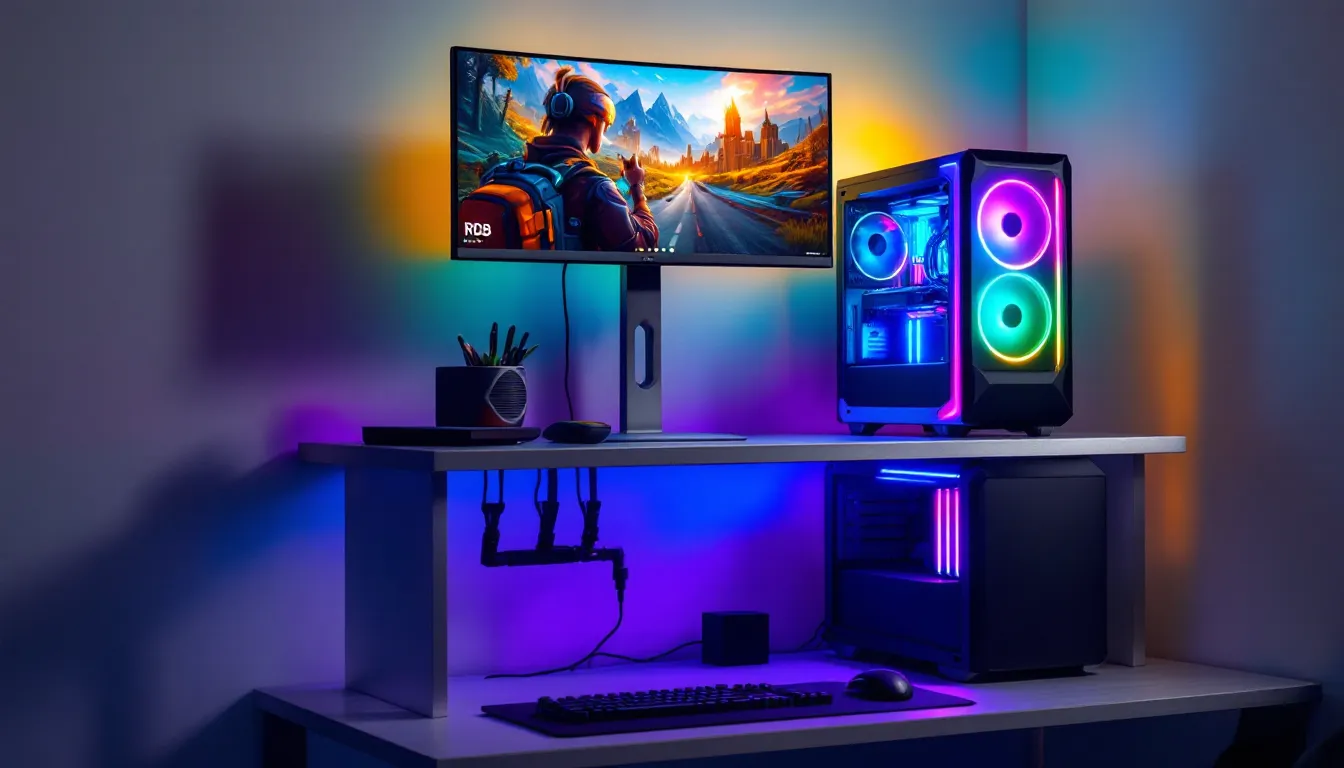
Your gaming setup isn’t complete until everything’s in the right position. A gaming PC stand might seem like a minor accessory, but it’s one of those purchases that instantly upgrades your entire experience. Whether you’re grinding ranked matches, streaming to thousands of viewers, or just trying to keep your neck from feeling like you’ve been hit by a truck after an eight-hour session, the right stand transforms your desk from cramped and uncomfortable to properly aligned and professional. In 2026, the market’s flooded with options, from simple monitor risers to elaborate multi-monitor mounts, and figuring out which one actually fits your setup, budget, and needs requires more than just grabbing whatever’s on sale. This guide breaks down everything you need to know about gaming PC stands: what makes them worth the investment, which features actually matter, and how to pick the one that turns your gaming workspace into something you’ll actually enjoy spending time in.
Table of Contents
ToggleKey Takeaways
- A gaming PC stand elevates your monitor and tower to improve ergonomics, airflow, and cable management, reducing neck strain by 30-40% and lowering system temperatures by 5-10°C.
- Prioritize adjustable height, durable materials like steel or aluminum, and adequate weight capacity (at least 50 pounds) when selecting a gaming PC stand for your setup.
- Monitor stands work best for single-display setups under 40 pounds, while tower stands improve cooling and are essential if your PC sits on carpet or lacks proper airflow.
- The best gaming PC stand value falls in the $80-150 price range, offering durability and features that cheap alternatives under $40 cannot match over time.
- Proper installation on a flat surface, weight distribution, and post-installation airflow testing ensure your gaming PC stand remains stable and effective for years.
What Is a Gaming PC Stand and Why You Need One
A gaming PC stand is exactly what it sounds like: a platform or mounting system designed to elevate either your monitor, your PC tower, or both off your desk surface. Unlike generic computer furniture, gaming PC stands are engineered with specific goals in mind: better ergonomics, improved airflow around your hardware, smarter cable routing, and a cleaner overall workspace.
You might wonder if you actually need one. The honest answer: it depends on your current setup, but most gamers benefit significantly from having one. If you’re playing on a flat desk with your monitor at eye level, great, but if your tower’s on the floor kicking up dust, your monitor’s wedged on top of a stack of papers, or you’re hunching forward just to see the screen, a proper stand will genuinely improve your experience. It’s not luxury: it’s infrastructure. A gaming PC stand gives you something your standard desk can’t: intentional, optimized spacing that works for your specific equipment.
The real payoff comes in three areas. First, ergonomics: proper elevation puts your monitor at eye level and your keyboard at the right height, which cuts down on neck and back strain during those marathon sessions. Second, airflow and cooling: lifting your tower off the ground lets air circulate underneath, keeping your GPU and CPU cooler during intensive gaming. Third, organization: a good stand includes cable management that actually works, so instead of cables dangling everywhere, you’ve got a clean, professional-looking setup that’s easier to maintain and upgrade.
Key Features to Look for in a Gaming PC Stand
Not all gaming PC stands are built the same. When you’re comparing options, several specific features separate the solid choices from the ones you’ll regret buying.
Height and Adjustability
Heightadjustability is non-negotiable. A stand with fixed height might work for your current setup, but the moment you upgrade your monitor, change your desk, or just want to reconfigure your workspace, you’re stuck. Look for stands with a range of at least 3-5 inches of vertical adjustment. This flexibility matters because your monitor should sit at or slightly below eye level when you’re sitting upright, a position that changes depending on your chair, your desk height, and honestly, what feels comfortable after hours of gaming.
Some premium stands offer pneumatic or motorized adjustment, which is nice if you’re into standing desk setups. For most gamers, a simple adjustment mechanism with a ratchet or lever is more than enough. The key is that adjusting height should take seconds, not ten minutes of fiddling with bolts.
Material and Durability
Material determines longevity. Steel and aluminum are the gold standards here, they’re rigid, they won’t sag over time, and they handle the weight of gaming monitors without flexing. Plastic-heavy stands can work for lightweight setups, but they’re prone to warping, especially in warmer environments where your gaming rig’s pumping out heat.
Look at the welds or joints if it’s steel, and check if the finish is treated to resist rust or corrosion. If you’re in a humid climate or your room gets warm during gaming sessions, this matters. Aluminum is lighter than steel, which is convenient if you ever need to move your stand, and it naturally resists corrosion without any special treatment.
Weight Capacity and Stability
This is where gamers mess up. You see a stand that looks solid, assume it’ll hold your 32-inch 4K monitor plus your RGB-laden tower, and then you put it all on top and immediately regret your purchase. Check the weight capacity, it should be clearly listed. A good gaming PC stand handles at least 50 pounds comfortably, but if you’re running dual monitors or a heavy tower, you’re looking at 80-100+ pounds, so verify what you’re actually putting on it.
Stability comes from the base footprint and the materials used. A wider base spreads weight more effectively and resists tipping. Some stands use weighted feet or rubber pads to grip your desk: others use clamps if they’re monitor-specific. The best ones combine a sturdy base with low center of gravity, if the stand feels wobbly when you press on it moderately, it’s not the one.
Cable Management and Airflow
Cable management sounds cosmetic, but it’s functional. A stand with built-in cable routing, channels, clips, or sleeves, keeps your mess organized and makes it way easier to unplug or swap equipment later. You don’t want cables tangled around your tower’s power supply or draped across your desk where they’re a trip hazard.
Airflow is critical for system longevity. An open-frame stand lets air flow underneath your tower. A solid platform concentrates heat. If your stand has any solid surfaces underneath where your tower sits, make sure there’s ventilation, holes, slots, or a raised lip that keeps the tower an inch or two off the surface. This prevents your PC from sitting in its own heat, which tanks performance and can shorten component lifespan.
Types of Gaming PC Stands: Which One Is Right for You
Gaming PC stands come in three main flavors, and which one you need depends on what you’re actually trying to organize.
Monitor Stands and Risers
Monitor stands and risers are the most common type. These platforms sit directly on your desk and elevate your monitor to the correct height. They’re often hollow underneath, which gives you storage space for peripherals, documents, or your soundbar. A basic monitor riser runs $30-80, and it’s honestly one of the best investments you can make if you’re playing on a monitor that’s currently too low.
The appeal is simplicity: no installation, no bolts, just set it down and place your monitor on top. The catch is that you’re limited by how much weight you can stack, most support 20-40 pounds. Also, a single-monitor riser doesn’t help organize your tower: it just elevates one piece of the puzzle. If your setup involves multiple monitors or a tower that needs elevation, you might need something more comprehensive.
PC Tower Stands and Elevators
If your tower’s currently sitting on carpet or a concrete floor, it’s a dust magnet and the fans are working overtime pulling air through dust bunnies instead of clean air. A PC tower stand lifts your tower 6-12 inches off the ground, improving airflow dramatically. These are usually open-frame designs with four legs, sometimes on wheels for portability.
Tower stands are specialized, they handle the weight of a full gaming PC (often 30-50+ pounds) with stability. They’re less flashy than monitor stands because they’re not something your eye immediately catches, but functionally they’re one of the smartest investments for system cooling. Some modern tower stands include built-in cable management and are designed to fit under or beside your desk.
Multi-Monitor Mount Systems
For esports competitors or content creators running dual or triple monitor setups, a multi-monitor mount system is the play. These are usually articulating arms that clamp to your desk and hold multiple monitors at different angles. They’re pricier ($150-400+) but they free up massive desk space because monitors are suspended rather than sitting on the surface.
These systems require desk space for the clamp mount, and you’ll need to ensure your desk can handle the weight and pressure. But if you’re serious about competitive gaming or streaming, having three monitors at your exact preferred angle and distance is worth every penny. Some also accommodate additional equipment like lighting or cameras.
Ergonomic Benefits and Performance Improvements
A gaming PC stand isn’t just about looks or organization, it’s about making your body and your hardware actually work better. The differences are measurable and noticeable within the first session.
Reducing Neck Strain and Improving Posture
Low monitors force you to look down, which strains your neck and upper back. Hours of that and you’re dealing with genuine pain. Proper elevation puts your monitor at eye level, which means your neck stays neutral. Studies on workspace ergonomics consistently show that monitors at eye level reduce neck strain by 30-40% compared to low positioning.
Posture follows. When your monitor’s at the right height and your keyboard and mouse are positioned correctly on your desk, your whole posture improves, shoulders relax, spine aligns naturally, and you’re more comfortable during long sessions. This isn’t just comfort: it’s injury prevention. Gamers who take ergonomics seriously report fewer instances of repetitive strain injuries and neck problems as they get older.
Enhancing Cooling and System Longevity
Your GPU and CPU generate serious heat during gaming. When your tower sits on the floor or directly on a surface without airflow, you’re limiting how much cool air can get underneath. A tower stand with open-frame construction and proper ventilation can drop internal temperatures by 5-10 degrees Celsius under load.
That might sound small, but it translates directly to longer component lifespan. For every 10 degrees Celsius cooler your system runs, you extend the functional life of your hardware by years. Better cooling also means your fans don’t have to work as hard, which means less noise and less power consumption. Hardware reviews from Tom’s Hardware consistently show that proper equipment positioning and airflow are foundational to any stable, long-lasting gaming setup.
How to Choose the Right Gaming PC Stand for Your Setup
Picking the right stand means knowing your constraints and priorities. It sounds obvious, but a lot of gamers buy based on aesthetics or price without thinking through whether it actually fits their situation.
Assessing Your Desk Space and Layout
First, measure. Know your desk dimensions, especially depth and width. A monitor riser might take up 20 inches of width: a dual-monitor arm system needs robust desk edge space for the clamp. Sketch out your current setup: where’s your keyboard, mouse, headset? Where do you want your tower?
Consider what’s underneath your desk already. If you’ve got drawers, cable management units, or a PC already tucked under there, a tower stand might not fit. If you’re on carpet, a tower stand is essential for airflow. If you’ve got limited desk surface, a monitor stand with hollow space for storage is more efficient than one that’s fully solid.
Also think about cable routing. Where do your power outlets sit? A stand that forces cables to run across your entire desk is annoying and potentially unsafe. The best stands either sit near outlets or have channels that guide cables toward them.
Matching Your Gaming Style and Equipment
Competitive gaming has different ergonomic needs than casual gaming. Esports players often benefit from elevated, angled monitors (usually 20-30 degrees) to reduce eye strain during intense sessions. If you’re a console player who games casually, your priorities might be different, cleaner desk space and dust prevention might matter more than hyper-optimized angles.
Equipment matters too. A 27-inch 1440p monitor is manageable on a basic riser. A 48-inch ultrawide or dual 32-inch 4K monitors? You need something heavier-duty. Similarly, if you’re running an enthusiast-class PC with a custom water loop, you want a tower stand that provides rock-solid stability, not something that wobbles.
Consider your future plans. Are you planning to upgrade to a second monitor? Get a new, larger display? If so, buy a stand that can accommodate that expansion rather than replacing it in six months.
Budget Considerations and Value
Gaming PC stands range from $30 basic risers to $400+ articulating systems. There’s no “best” in an absolute sense, but there’s definitely a best value for your specific needs.
For most gamers, $80-150 gets you a solid, durable stand that’ll last years. Less than that and you’re taking on risk, materials might be cheap, weight capacity might be marginal, or adjustment mechanisms might fail. More than that and you’re paying for premium materials or specialized features that might not be essential for your setup.
Don’t confuse cheap with good value. A $40 stand that sags after six months costs more in frustration than a $120 stand that’ll outlast your PC. TechRadar’s buying guides regularly compare gaming hardware across price tiers, and they consistently show that mid-range products offer the best balance of durability and features for most users.
Installation, Setup, and Maintenance Tips
Getting your stand set up correctly matters as much as buying the right one. A well-installed stand stays stable for years: a hastily assembled one creates problems.
Proper Installation for Maximum Stability
Read the instructions. Seriously. Manufacturers include them because most installation issues stem from people skipping this step. Check that all bolts, screws, or fasteners are included and accounted for before you start.
Assemble on a clean, flat surface first, not on your desk while balancing it. Once you’ve got the frame built, carefully place it on your desk or floor, depending on the type. If it’s a clamp-based system, position it first before tightening. A clamp that’s off-center or over-tightened can damage your desk or cause instability.
Once everything’s assembled, test stability before you place expensive equipment on top. Press down moderately on the stand from different angles. It should feel solid, not wobbly. If it shifts, tighten fasteners and check that the base is properly seated.
Weight distribution matters. If you’re running dual monitors on a single stand, place heavier equipment centrally to keep the center of gravity low. Never load one side of a stand heavily while the other’s light, that creates tipping risk.
Optimizing Your Workspace After Installation
Once the stand’s installed, optimize angles and positions. Your monitor should be at eye level when you’re sitting upright with good posture. If it’s too high or low, adjust it or reconsider the stand’s position on your desk.
Cable management comes next. Route power cables toward your outlets, group them together with cable ties or sleeves, and avoid running them where you or a chair wheel might catch them. This isn’t just about aesthetics, it prevents damage to cables and reduces the risk of tripping hazards.
Test airflow around your tower. If you’ve installed a tower stand, verify that air’s actually flowing underneath and around your equipment. Place your hand near intake fans and exhaust vents to confirm you’re getting natural airflow. Monitor your system temps during a gaming session to confirm the stand’s making a difference.
Finally, check everything after about a week of use. Fasteners can loosen slightly as equipment settles. Tighten anything that’s come loose, and verify that the stand hasn’t shifted position on your desk. How-To Geek has excellent guides for optimizing gaming setups, including proper cable management and hardware positioning strategies.
Conclusion
A gaming PC stand is one of those investments that seems minor until you actually have one, and then you wonder how you ever managed without it. Whether you need a simple monitor riser, a dedicated tower stand for better airflow, or a full multi-monitor articulating system depends on your specific setup and gaming style, but for almost every gamer, some form of stand improves ergonomics, cooling, and overall workspace organization.
The key takeaway: don’t overthink this. Assess what you actually need, prioritize durability and stability over flashy aesthetics, and buy something in the $80-150 range if you’re looking for solid value. Proper installation and adjustment matter as much as the stand itself. Get those two things right, and you’re looking at years of improved comfort and a setup that actually supports serious gaming rather than fighting against it. Your neck, your hardware, and your gaming performance will thank you.

